👋 Welcome back to AI for SME Success, your weekly dose of practical AI insights and updates that matter to small businesses.
Here’s what we’re covering this week:
Is the “OpenAI Era” ending? For the first time, Claude has overtaken ChatGPT in the App Store, fueled by a growing #QuitGPT movement. The catalyst was a clash with Pentagon where Anthropic chose ethics over a massive defense contract.
Today we unpack what this shift means for you, starting with a powerful workflow to automate your ad creation using Claude.
To wrap up, we look at Canva’s Magic Layers, an attempt to make AI images editable. We tested this new feature and share what works, what doesn’t, and the workarounds.
🛠️ 5 Steps to Automate Ad Creation
A recent post about an Anthropic Growth Marketer went viral. According to the post, Anthropic, valued at $380 billion and employing thousands, had a growth marketing team made up of a single person for 10 months: Austin Leu.
Austin, a non-technical marketer, confirmed that he managed the entire growth stack single handedly: paid search, paid social, app store optimization (ASO), email marketing, and search engine optimization (SEO).
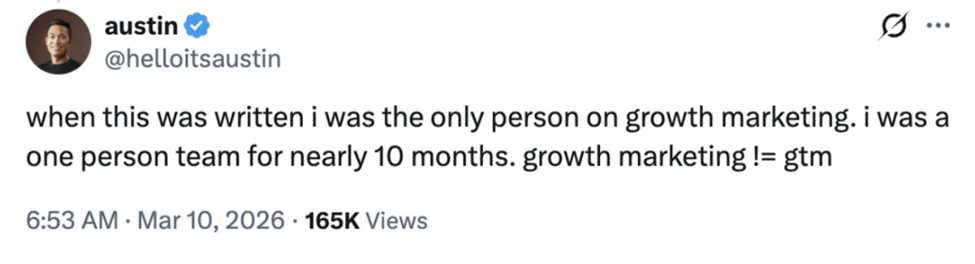
Image | Related X post (Source: X)
Here is a step-by-step process that Austin used to cut down ad creation process from hours to minutes with 10x better results:
STEP 1: Export ad performance data to an CSV file and upload it to Claude Code. Instruct the AI to identify underperforming ads; it will analyze the metrics, flag weak performers, and generate new copy variations on the spot.
STEP 2: Split the workflow into two specialized sub-agents: one focused exclusively on 30-character headlines and another on 90-character descriptions. Tuning each agent to specific constraints ensures higher-quality outputs than a single prompt, generating hundreds of optimized, targeted text variations.
STEP 3: Use a Figma plugin to import the new headlines and descriptions directly into ad templates. The tool automatically swaps copy into each frame, generating hundreds of ready-to-publish variations in seconds, eliminating hours of manual duplication and copy-pasting.
STEP 4: Connect Claude Code to the Meta Ads API using the Model Context Protocol (MCP). This allows Claude to provide instant performance answers in natural language, eliminating the need to manually check Meta Ads dashboards.
STEP 5: Establish a memory system to log every hypothesis and experiment result. This closes the loop, allowing Claude to pull historical data into future iterations. The system gets smarter every cycle, reducing human labor to mere tracking.
Here are some additional helpful resources:
- A video where Austin Leu explains how Anthropic uses Claude in marketing.
- How Anthropic teams use Claude Code publication (including AI use cases in marketing).
🚶Millions Left ChatGPT for Claude. Here is What to Know.
Last week we covered how Anthropic reportedly declined a Pentagon contract that would have given the government access to Claude for mass surveillance and autonomous weapons, while OpenAI signed a similar agreement hours later.
Since then, millions of users have switched from ChatGPT to Claude.
The internet is now full of guides supporting the transition. A recent Forbes article, “1.5 Million Users Leave ChatGPT. If You Cancel, Make Sure You Do This First,” explains how to download your ChatGPT memory.
Anthropic has published a “Switch to Claude Without Starting Over” guide showing how to upload that memory into Claude.
Anthropic has also launched its free learning platform, Anthropic Academy, with 13 certified courses to get you up to speed fast. Three to start with:
- 🍎 Claude 101, your first stop.
- 🧩 AI Fluency: Framework & Foundations on how to use AI effectively and ethically.
- 🤖 Introduction to Agent Skills to level up your automation game.
Another great resource is The Complete Guide to Building Skills for Claude, released by Anthropic earlier this year and packed with practical guidance for anyone looking to customize Claude for their specific workflows. Claude Skills are internal playbooks loaded automatically before a task to ensure consistent, high-quality outputs. Unlike ChatGPT’s Projects & Customization, which are user-facing configurations, Skills work behind the scenes, making Claude smarter at structured, repeatable work.
🧪 We Tested Canva’s New Magic Layers for AI Images
On March 10, Canva announced Magic Layers, a new AI feature that converts flat images into editable, layered designs inside the Canva editor.
This feature is particularly useful for AI-generated images, which come as finished graphics, and very often require editing.
To access Magic Layers, click your image, select Edit, then choose Magic Layers from the Magic Studio menu, as shown in the illustration below.
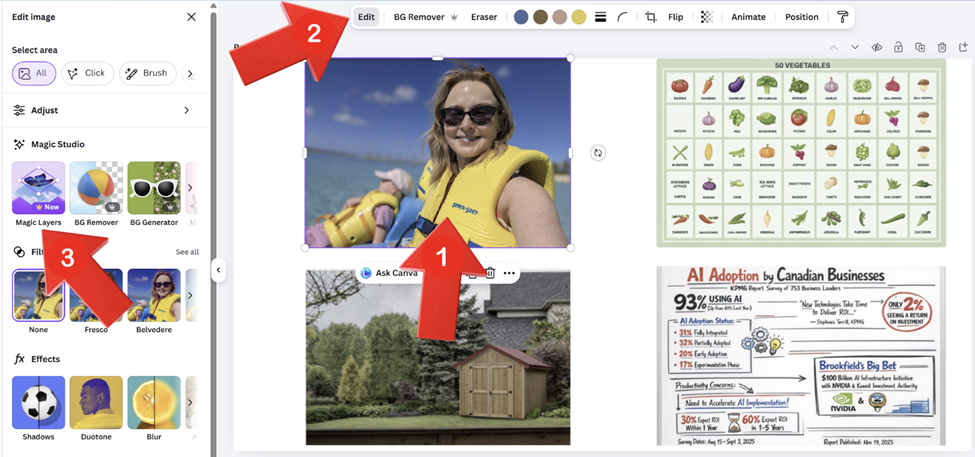
Image | How to Find Magic Layers
We tested Magic Layers against 4 different types of illustrations: lifestyle photo (1), AI generated structured grid (2), AI altered landscape photography (3), and AI generated whiteboarding infographics (4), each representing a different level of visual complexity and layout structure.
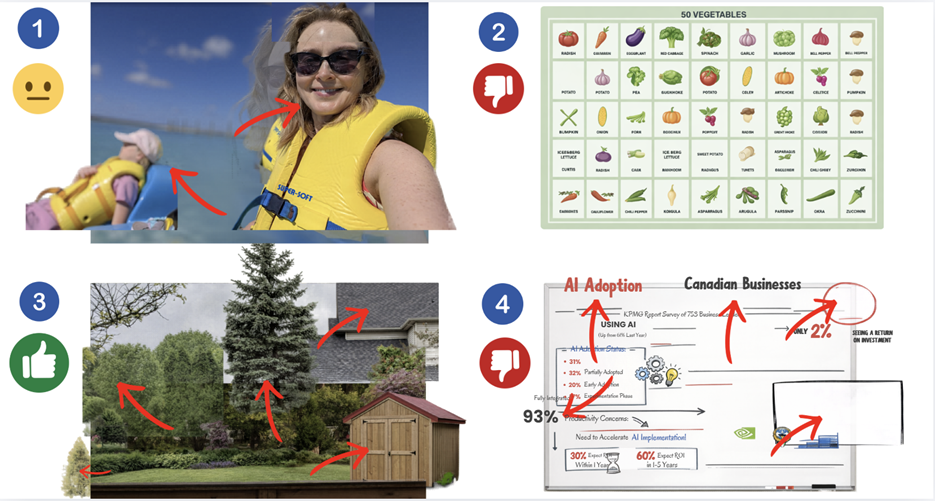
Image | Results of Using Magic Layers on Different Image Types
Magic Layers performed best with the landscape photo (3). Nearly every element, the shed, trees, and roof, could be moved independently without disrupting the overall image. Results with the lifestyle photo (1) were mixed. The background figure separated cleanly, but the foreground figure left a shadow behind. The whiteboard infographic (4) had most of its text break apart during layering. The structured emoji grid (2) did not layer at all.
Fortunately, most Magic Layers limitations can be offset by Magic Grab and Grab Text, which are also relatively new Canva features. Magic Grab isolates a single object from a photo so you can move or resize it while keeping everything else intact. Grab Text lets you select and edit specific text inside an image, turning it into an editable text box. For example, any element or text in the whiteboard infographic (4) that Magic Layers couldn’t separate can be isolated and edited individually using Magic Grab and Grab Text.
Magic Grab and Grab Text can found in the same Magic Studio menu as Magic Layers.
Thank you for reading today’s edition!
If this issue was valuable, pass it along to a fellow business owner.
Also, I’d love to hear your feedback, questions, or topic suggestions at natalia@nataliabrattan.com.
See you next week,
Natalia